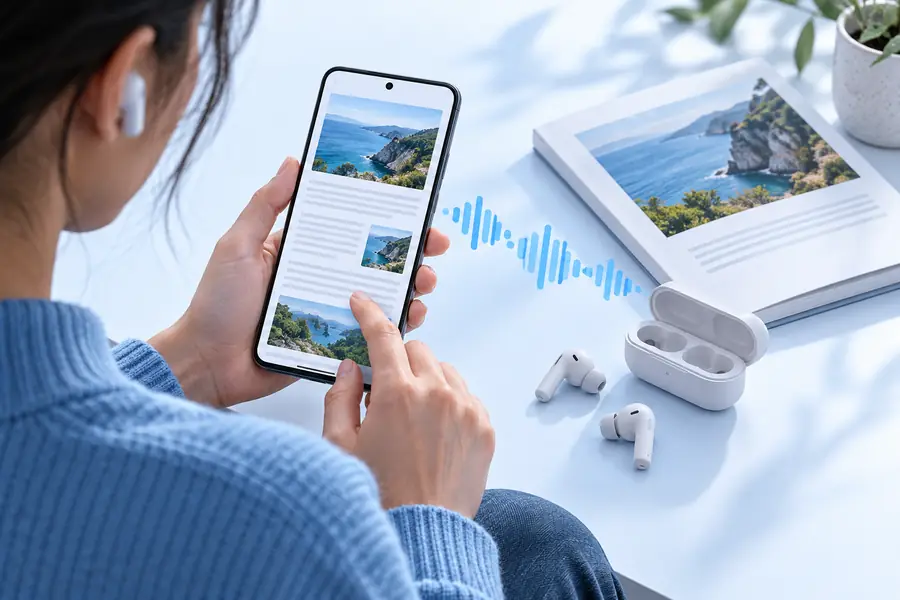
Make microsoft edge read aloud android part of your daily workflow
If you use microsoft edge read aloud android to listen to webpages, Readaloud can sit beside that routine when you need a more deliberate, reusable voice workflow. Use the guide below to decide where it belongs and what to expect.
Most Android listeners already have a simple path: open a page in Edge, find the browser menu, start Read Aloud, and listen. That route is useful, but it has clear boundaries.
It depends on the page being open in Edge
The built-in command is tied to the current browsing context, so it is not a universal reader for every app or file on an Android device.
WorkaroundOpen supported content in Edge first, or move the text into a voice-reader workflow designed for broader input.
It is not a full podcast production tool
Browser read-aloud is intended for listening, not for arranging chapters, editing narration, or producing a polished audio release.
WorkaroundUse the browser route for comprehension and review, then choose a dedicated voice workflow when you need a finished deliverable.
Controls can vary by page and device
Menus, accessibility settings, voice choices, and playback behavior may differ with Android versions, Edge updates, language settings, and page structure.
WorkaroundTest the exact page on the device you will use and keep a second listening route available for important material.
It does not remove difficult source formatting
Ads, navigation labels, tables, pop-ups, and badly structured pages can still make the spoken result harder to follow.
WorkaroundReader-friendly pages, cleaned text, or a prepared document usually produce a clearer listening session.
where we slot in
Readaloud is most useful as the intentional layer around a browser habit: prepare the material, listen with a chosen purpose, and return to the source when you need visual context.
1
Open and identify the source
Start in Edge on Android with the article, study page, message, or document you want to hear. Check that the text is current and that the page is not hiding important content behind an interaction.
2
Choose the right listening route
Use Edge’s built-in reading control for quick, in-place listening. Use Readaloud when you want a more focused voice-reader experience, clearer preparation, or a workflow that is easier to repeat.
3
Listen, pause, and verify
Treat audio as a way to absorb and review information, not as a replacement for every visual element. Pause for names, figures, links, diagrams, and passages that need to be checked on screen.
1Readaloud site languages listed in the manifest
6locales
2Related pages in the Readaloud content plan
23guides
3Primary product destination for the voice-reader action
1handoff
Commuter reader
You open a long article in Edge on Android before leaving home and want to continue listening while your attention is away from the screen.
Keep Edge for quick access, then use a focused voice-reader route when the session needs fewer distractions and a clearer listening purpose.
The difference is less about replacing Edge and more about changing the shape of the session. A browser command starts playback; a prepared voice workflow gives the listening task a clearer boundary.
Browser-first listening
Focused listening workflow
Use Edge for immediate page access; use a dedicated workflow when preparation and repeatability matter.
deliverable spec
Use this comparison to choose the least complicated route that still fits the job. Neither side is universally better; the right choice depends on whether you need immediate access or a more controlled listening session.
Edge on Android
Readaloud workflow
1
Starting point
Edge on Android
A webpage already open in Microsoft Edge on an Android device
Readaloud workflow
Material selected for a deliberate voice-reading session
2
Best for
Edge on Android
Quick, in-context listening while browsing
Readaloud workflow
Focused reading, review, and repeatable listening habits
3
Setup effort
Edge on Android
Low when the page is compatible and the control is available
Readaloud workflow
Requires an intentional handoff into the voice-reader experience
4
Source context
Edge on Android
Keeps the original page visible during playback
Readaloud workflow
Can reduce browser clutter by centering the listening task
5
Page complexity
Edge on Android
Can struggle with navigation, ads, tables, and unusual layouts
Readaloud workflow
Works best when the input has been selected or prepared for speech
6
Visual verification
Edge on Android
Convenient for checking links, images, and page structure
Readaloud workflow
Still requires returning to the source for visual-only information
7
Repeat use
Edge on Android
Good for one-off visits and short checks
Readaloud workflow
Better suited to a consistent routine across reading sessions
8
Finished audio production
Edge on Android
Not intended for editing or publishing narration
Readaloud workflow
A voice-reading workflow, not a promise of studio production
Choose the listening route that matches the task
Keep Microsoft Edge when you need immediate access to a page on Android. When the goal is focused listening, review, or a repeatable routine, open Readaloud and hand the reading task to a voice-first workflow.
Move to a focused reader when the session needs structure.
scenario FAQ
These answers focus on using Microsoft Edge and Android together, while keeping the distinction between browser playback and a broader voice-reading workflow clear.
Microsoft Edge on Android may provide reading and accessibility controls depending on the current app version, page, language, and device settings. If the control is not visible, check the page menu and Android accessibility options, then test the same content through another voice-reading route.
Open the page in Microsoft Edge, open the browser’s page or overflow menu, and look for the available reading or read-aloud control. The exact label and placement can change, so keep the page open while checking the current Edge interface on your device.
The page may contain complex navigation, unsupported elements, embedded content, or text that Edge cannot identify cleanly. An outdated app, device language setting, or missing speech service can also affect playback; update the app, check Android text-to-speech settings, and try a simpler page.
Yes, Readaloud can serve as a separate voice-reading route when you want a more focused session than browser playback provides. Edge remains useful for opening and checking the source, while Readaloud can fit the preparation, listening, and review part of the workflow.
It can be helpful for a long, well-structured article, especially when you want to stay inside the browser. For pages filled with menus, ads, tables, or interactive elements, clean the source or switch to a focused voice-reader workflow so the spoken result is easier to follow.